
Using toolbars to format a document
Week: Three
Topic: Using toolbars to format a document
Objectives: At the end of the lesson, students should be able to;
1. Apply bold, underline and italics to texts
2. Format font types, sizes and colour.
3. Justify text position
4. Apply undo and Redo
Reference material: Learn Africa Basic Agricultural Science UBE edition for primary school pupils 6
Content:
Boldening, Italicising and Underlining
To bolden, italicise or underline a letter, word or sentence:
1 Type the sentence
2 Highlight the sentence
3 Locate the letters B, I and U on the toolbar
4 Clicking B boldens, clicking I changes to italics, while clicking U underlines.
Instead of using the mouse, certain keys on the keyboard could be used after selecting the words.
These are:
1 To change to bold
Ctrl + B
2 To change to italics
Ctrl + I
3 To underline
Ctrl + U
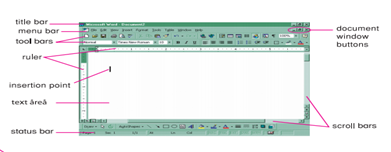
Changing font types
There are many font types, also known as typefaces. While using the MS-Word, the computer user may change from one font to another. To do this:
1 Select the words.
2 Click on the font type menu, and a list of font types is shown.
3 Click on the font type of your choice.
Changing case
Changing case means changing from a capital letter to a small letter or from a small letter to a capital letter. A capital letter is in upper case while a small letter is in lower case. To change case:
1 Select the letter or word.
2 Click Format on the menu bar, and a list of options appears.
3 Click Change case.
4 Click upper case or lower case, depending on the case you want
Evaluation:
1 Type, ‘I have a nice computer at home.’
2 Let ‘nice’ be in italics.
3 Let ‘computer’ be bold.
4 Let ‘home’ be underlined.